FilmCraft is an open-source desktop video editor written in Rust that processes footage using its own media codecs rather than bundling FFmpeg.
Built under the ArtCraft umbrella, the application gives editors a local environment to assemble, grade, mix, and export video sequences on macOS, Windows, and Linux. FilmCraft is an early-stage editor under active development rather than a finished commercial replacement, but its multi-track timeline and dedicated toolsets already offer a capable space for everyday video work.
Origin and ArtCraft Context
FilmCraft belongs to ArtCraft's collection of creative software, alongside desktop programs such as the image editor discussed in our PhotoCraft guide. The repository is released under MIT or Apache-2.0 licenses, giving developers and filmmakers the freedom to inspect, adapt, or build upon the engine under either license.
Beyond standalone desktop tools, ArtCraft is exploring practical methods for controllable AI filmmaking. In an essay on world models for film, Brandon Thomas describes combining synthetic environments, 3D scene composition, and character blocking with direct, manual creative decisions. FilmCraft fulfills the assembly side of that workflow, giving creators a dedicated timeline where generated fragments and captured camera takes can be arranged into cohesive sequences.
Editing Everyday Footage on the Timeline
The editing interface in the FilmCraft editor uses a standard non-linear layout. Project media stays organized inside thumbnail bins, and editors review incoming clips in a Source monitor before placing them into the sequence shown in the Program monitor. Dedicated workspaces for Assembly, Editing, Color, Effects, and Audio can be rearranged or docked to match the requirements of the current pass.
Basic assembly relies on traditional three-point editing. You preview raw takes in the Source monitor, set In and Out points around the usable action, select target tracks, and drop the selection onto the timeline. An insert edit places the incoming segment at the playhead and pushes downstream media forward on the affected tracks, keeping subsequent timing intact without manual shifting. An overwrite edit lays the selection across the track at the current position, replacing whatever frames previously occupied that stretch of the timeline.
Fine-tuning scene flow depends on standard trimming operations. A ripple edit moves an individual cut point and pulls downstream clips along with it, closing gaps or creating room on the active track. A roll edit shifts the edit point between two adjacent clips simultaneously, extending one side while shortening the other so overall timeline duration never changes. When adjusting internal action without disturbing neighboring cuts, a slip edit alters the start and end frames shown within the clip boundaries, while a slide edit moves the entire clip earlier or later along the track while trimming the adjoining heads and tails. To ensure exact frame synchronization across projects, FilmCraft calculates every timeline position using integer ticks rather than floating-point time calculations.
Color, Motion, Sound, and Captions
Beyond assembling cuts, FilmCraft includes dedicated panels for balancing color, animating graphic elements, mixing soundtracks, and preparing subtitles.
Color Correction and Grading
The Color workspace pairs primary grading controls with real-time waveform monitors and vectorscopes. Basic adjustment sliders let you refine temperature, tint, exposure, contrast, highlights, shadows, whites, blacks, and saturation. When scenes demand more selective intervention, the panel provides RGB curves, three-way wheels for shadow, midtone, and highlight regions, and an HSL secondary selection tool to isolate and adjust narrow color bands.
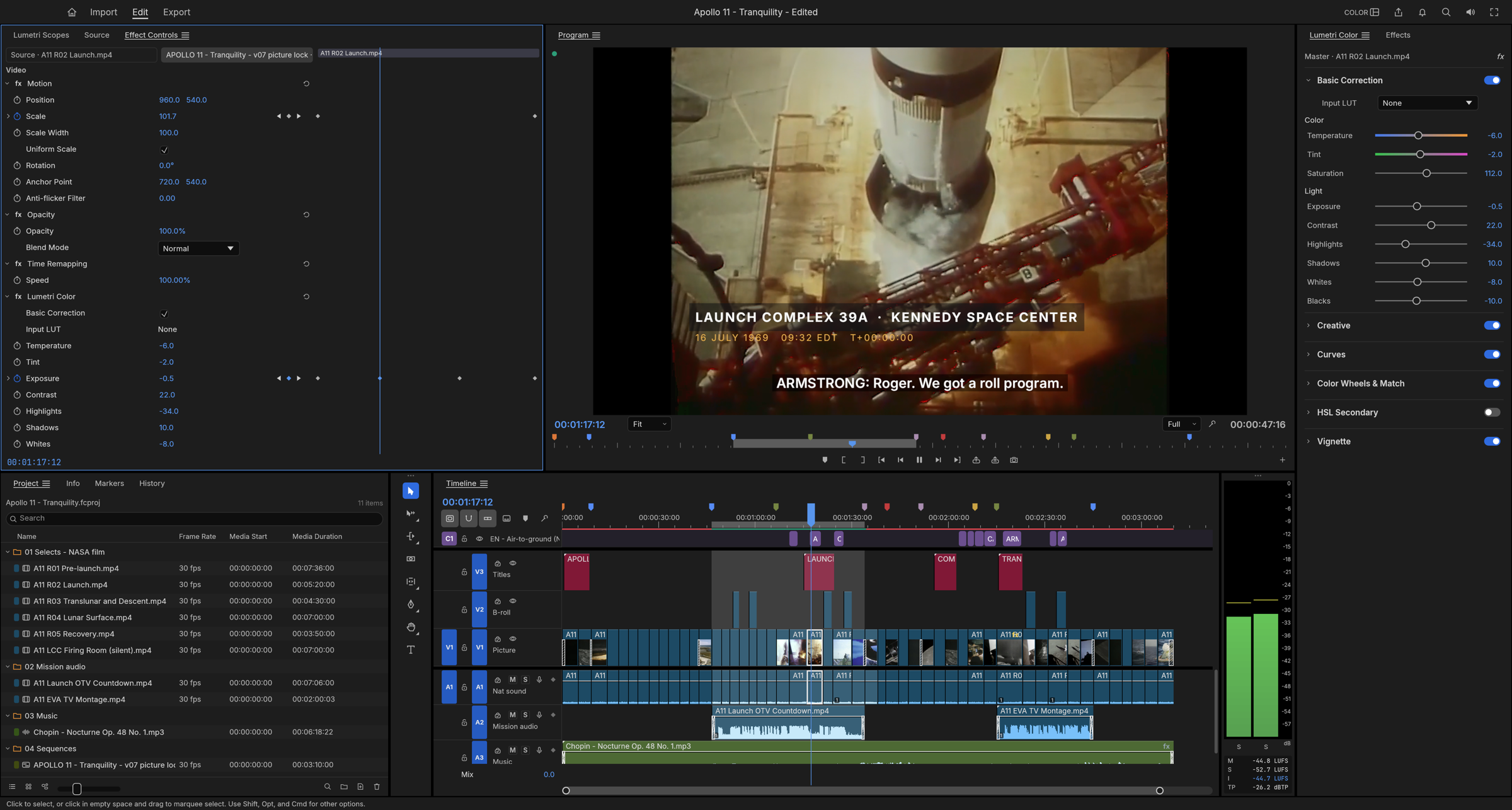
Credit: ArtCraft
This setup helps solve common real-world balance issues, such as intercutting an indoor interview lit by tungsten fixtures with a daylight cutaway shot near an exterior window. Temperature and tint controls help balance the warmer interview with the cooler cutaway. Exposure adjustments bring their brightness closer together, while HSL selections allow more targeted changes to particular colors.
Motion Keyframes and Transitions
Each clip placed on the sequence provides independent controls for position, scale, rotation, and opacity. You can animate these parameters across time using linear, Bezier, hold, or ease keyframes. The interface includes value and velocity graph views, providing interactive handles to shape how changes accelerate, peak, and decelerate.
When introducing a lower-third title plate or static graphic, applying ease curves to position and scale keyframes prevents rigid, mechanical motion. The element glides on screen, eases into its resting position, and holds steadily without harsh stops. For pacing scene changes or moving between scene chapters, the editor includes standard transitions like cross dissolves and dips to black.
Audio Mixing and Caption Tracks
Audio tracks are controlled through clip and track mixers equipped with gain faders, mute and solo toggles, parametric equalizers, audio filters, true-peak limiters, and broadcast loudness meters. Timeline automation allows editors to record and adjust fader movements continuously across playback.
In a typical dialogue scene with background music, an editor can set vocal gain so speech cuts cleanly through the mix, apply a high-pass filter to reduce low-frequency handling noise, and use a limiter to help control unexpected peaks. By editing volume automation on the music track, you can lower the music under speech and bring it back up between sentences. For accessibility and delivery requirements, FilmCraft includes dedicated caption tracks supporting SRT, WebVTT, and SCC subtitle files, with options to export caption sidecars or burn open captions into final renders. Speech-to-text transcription remains an optional setting that is disabled by default, keeping automated speech recognition distinct from everyday manual subtitle editing.
How FilmCraft Differs from Established Editors
While FilmCraft adopts conventions familiar to users of commercial suites like Adobe Premiere Pro, its underlying codebase, interchange options, and production readiness follow a different path.
FilmCraft stores project structures natively in .fcproj files, which are UTF-8 JSON documents defined in the project's file format specification. This open formatting keeps sequence hierarchies, effect parameters, and marker data fully transparent and accessible. For teams moving edits across multiple applications, the editor includes timeline interchange support for Final Cut Pro 7 XML, FCPXML, OpenTimelineIO, CMX 3600 EDL, AAF, and OMF formats. Transferring a cut via XML allows edit cuts, track assignments, and basic transitions to open inside another program, provided the linked media assets remain accessible at local paths. Complex effects, project structures and third-party plugin settings may not transfer intact.
In terms of production maturity, project maintainers estimated checklist feature presence at roughly 87 percent and daily production readiness at approximately 50 to 60 percent in their October 5, 2026 roadmap. These numbers represent project estimates rather than third-party performance benchmarks, and they exclude plugin hosting and AI generation entirely. FilmCraft does not host third-party VST3 or Audio Units audio plugins, nor does it support OpenFX video extensions. It does not decode proprietary camera RAW formats like RED, BRAW, or ARRIRAW. macOS has received more runtime testing than Windows and Linux. Separately, real camera and phone files are less thoroughly tested than standard conformance streams.
Automation Through Agents
A notable design element in FilmCraft is its command-centric architecture. Every button, menu item, slider movement, and trimming action maps to a discrete engine command taking typed arguments. These commands execute identically whether called from the user interface, a command-line session, a JSON control channel, or an agent interface communicating over the Model Context Protocol.
Because external software can dispatch identical instructions to the core engine, automated agents can inspect sequence structures, position assets onto timeline tracks, alter color correction values, request rendered preview frames, and trigger background exports. This functionality provides programmatic automation for assembling existing footage and local assets already on your machine; it is not a built-in text-to-video generator.
When Footage Is Missing: Generating the Shot First
Imagine editing a promotional spot for a handcrafted desk clock. You have captured clear macro footage of the brass gear train ticking on a workbench, but you lack an opening wide shot establishing the artisan workshop, and you have no transitional shot introducing the finished clock casing before the gears start moving.
External video generation tools offer another way to make the missing footage. If you need a completely new scene from a descriptive prompt, FastMoroAI text-to-video creates an establishing shot of the sunlit woodworking shop directly from text. If you have a clean still photograph of the assembled timepiece, FastMoroAI image-to-video transforms that static photograph into a moving video clip.
Once the clips finish generating, download the video files to your workstation and import them into FilmCraft alongside your original footage. Check that each file opens cleanly in the Source monitor, set In and Out points to isolate the steadiest frames, and drop the generated takes onto the timeline. From there, you can grade the clips in the Color panel to match the palette of your camera takes, balance audio beds underneath, and add lower-third titles or captions before export.
Downloads, Formats, and Running a First Small Project
Official desktop packages are available directly from the ArtCraft FilmCraft page and the v0.4.0 release page published on October 8, 2026. The project distributes native packages for macOS as a DMG disk image, Windows via installer and portable packages, and Linux as an AppImage alongside native distribution builds. Primary menu trees are translated into English, Japanese, Spanish, and Brazilian Portuguese, although several deeper panels remain in English.
Credit: ArtCraft
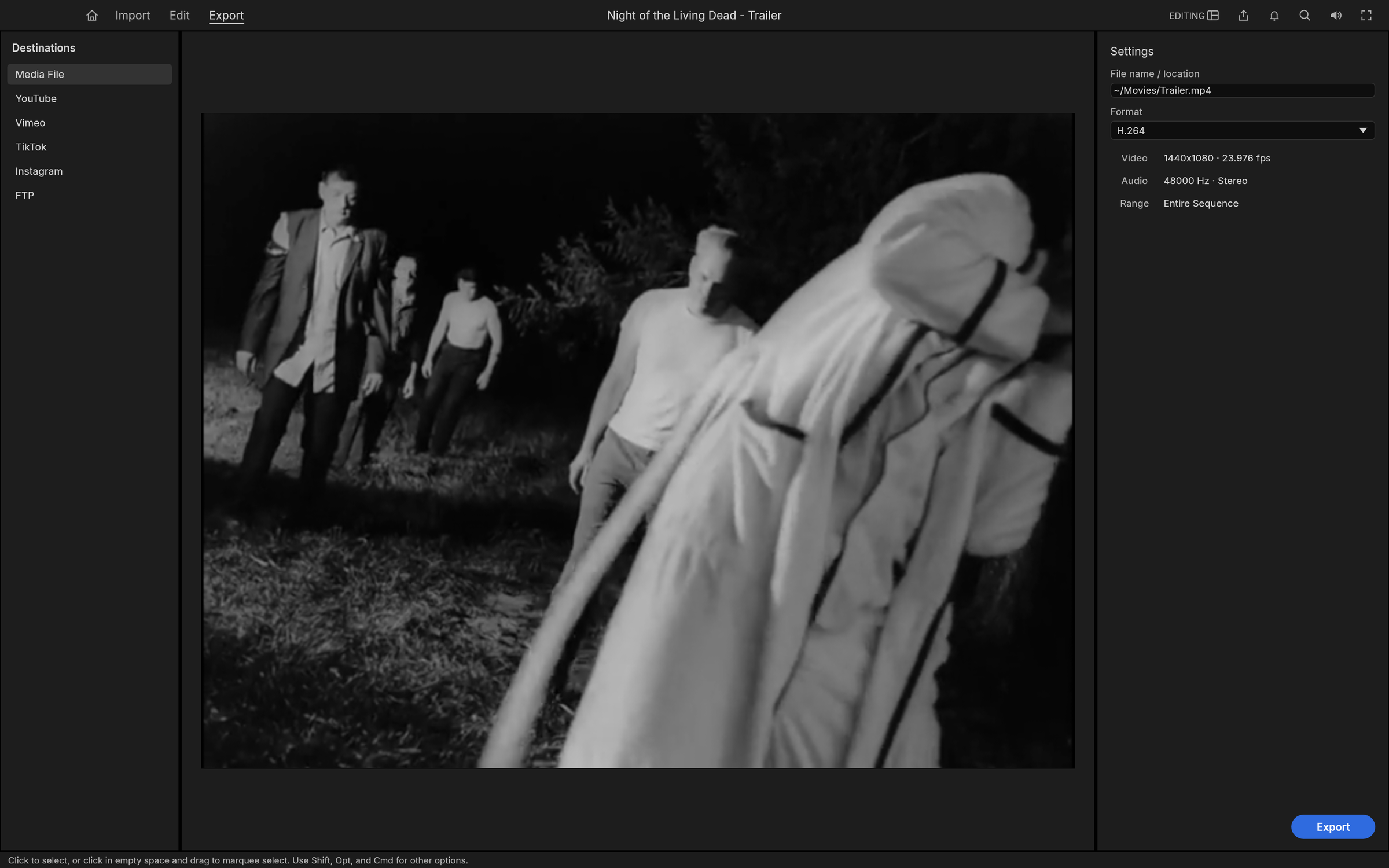
For sequence delivery, FilmCraft exports standard H.264 MP4 with AAC audio, Apple ProRes 422 HQ in MOV containers, uncompressed WAV audio, and PNG image sequences. Hardware HEVC availability depends on the platform and build and should be checked in your installed export panel. Background render queues handle export processing with visual progress meters, allowing you to continue reviewing sequences while files write to disk.
The most practical way to evaluate FilmCraft today is to test it on a brief, low-stakes edit. Copy a dozen short video clips into a test folder, import them into a fresh project bin, assemble a simple sequence with voiceover and background music, apply basic color adjustments, save and reopen the project file, and export an H.264 file. Production environments that require extensive camera RAW ingestion, specialized audio plugins, or enterprise collaborative timelines should remain on established commercial suites while following FilmCraft's open-source development.