

Grok Imagine Video 1.5 Image-to-Video Generator
Use xAI's grok-imagine-video-1.5-preview model to turn a still image into a short cinematic video. Upload a starting frame, describe the camera move, pacing, atmosphere, and sound design, then generate an HD preview that stays faithful to the source image.
Grok Imagine Video 1.5 Image-to-Video Examples
Review sample clips that show how a still-frame idea can be animated with cinematic motion, character framing, and prompt-directed camera rhythm.
What Grok Imagine Video 1.5 Preview Is Built For
Grok Imagine Video 1.5 is best understood as an image-to-video preview model: it starts from a source image, follows motion instructions, and produces short HD video clips.
Image-to-Video from a Starting Frame
Upload a single image as the visual anchor. The model animates that frame instead of inventing a completely unrelated scene from text alone.
Prompt-Directed Motion and Camera Moves
Guide the action with natural language: describe a push-in, orbit, pan, character gesture, atmosphere shift, pacing, or sound-design direction.
720p Preview Output
xAI positions the preview model around HD clip generation up to 720p, making the page more accurate than inflated 1080p claims.
Source-Image Consistency
The model is designed to preserve lighting, visual identity, and key details from the input frame while adding motion.
Better Prompt Control for Short Clips
Use compact, scene-level prompts to define subject motion, camera behavior, and mood without building a long production pipeline.
Useful for Iteration and Shot Testing
Create quick visual drafts for product shots, social concepts, scene blocking, and creative review before investing in a full edit.
Ranked #1 on Image-to-Video Arena
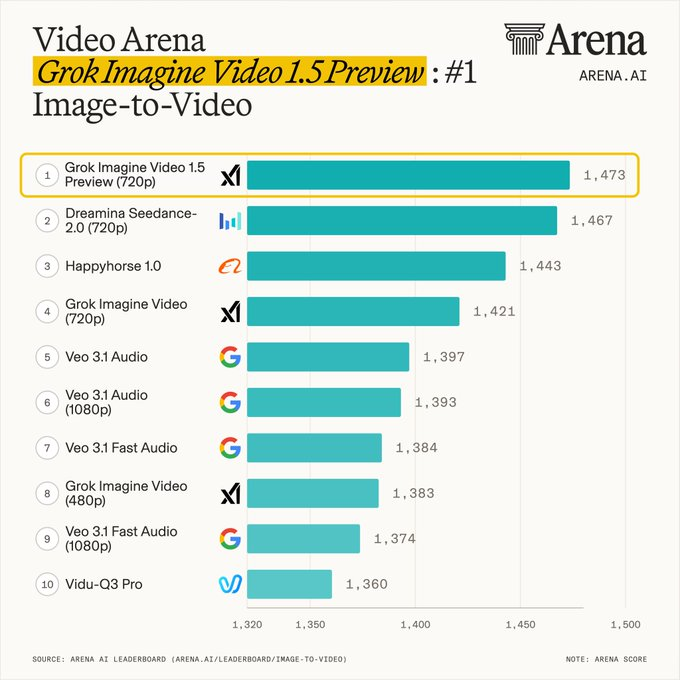
Arena.ai lists grok-imagine-video-1.5-preview-720p at the top of its Image-to-Video Arena leaderboard, with preliminary ranking data.
Sequence-Friendly Workflow
Stage several source images, animate them one by one, and assemble a longer sequence with a more consistent look.
Grok Imagine Video 1.5 Preview: Specs, Sources, and Practical Notes
A more grounded look at what the public xAI preview supports, how it ranks, and how to use it without overpromising the model.
Official Model Focus: Image-to-Video
xAI describes <code>grok-imagine-video-1.5-preview</code> as an image-to-video preview model. The core workflow is simple: provide a starting image, write a motion prompt, and let the model animate the scene while staying close to the source frame.
That is why this page now focuses on image-to-video rather than broad text-to-video claims.
Resolution and Clip Controls
The public xAI preview documentation lists 480p and 720p output tiers. FastMoro AI keeps this page aligned with that source, so the page no longer promises 1080p output for this preview model.
Use the highest available resolution when you need clearer faces, product details, or sharper camera movement.
Where It Works Best
Grok Imagine Video 1.5 is strongest when the input image already contains the composition you want: a product shot, a portrait, an environment plate, or a keyframe from a storyboard.
Prompts should describe motion rather than rewrite the whole scene: camera direction, subject action, atmosphere, pacing, and the sound-design intent.
Arena Ranking: #1 Image-to-Video Preview
Arena.ai currently lists <code>grok-imagine-video-1.5-preview-720p</code> at rank #1 on its Image-to-Video Arena leaderboard with a preliminary score of 1473±9. Rankings can move as new votes and models arrive, so this page links to the live source instead of treating the position as permanent.
Best Use Cases for Grok Imagine Video 1.5 Image-to-Video
Use Grok Imagine Video 1.5 when you already have a strong source image and need to explore motion, camera language, or short-form video direction quickly.
Product and Ad Motion Tests
Turn a product still, campaign key visual, or concept frame into a short motion draft before committing to a full shoot.
Storyboarding and Previsualization
Animate storyboard frames to test camera pacing, atmosphere, and scene continuity during early creative review.
Social Short-Form Concepts
Create quick image-to-video variations for Reels, Shorts, TikTok, and other vertical or landscape content workflows.
Character and Scene Continuity Checks
Use a consistent source frame to test how well motion, lighting, and facial details hold across a short clip.
Grok Imagine Video 1.5 vs Seedance 2.0 vs Veo 3.1
A practical comparison focused on image-to-video workflows, not broad unsupported claims across every video generation mode.
Primary workflow
Image-to-video preview: animate a starting image with motion and camera prompts.
Supports text-to-video and image-to-video workflows depending on provider integration.
Strong general video model, often used for prompt-led and image-led generation.
Public resolution signal
xAI documentation lists preview output tiers up to 720p.
Commonly available at 720p tiers across image-to-video providers.
Provider-dependent; some integrations offer higher-resolution variants.
Benchmark evidence
Listed at rank #1 on Arena.ai's Image-to-Video Arena at the time this page was updated.
Seedance 2.0 remains a strong image-to-video benchmark and appears near the top of Arena rankings.
Veo models are strong general-purpose generators, especially for broader video workflows.
How to Use Grok Imagine Video 1.5 for Image-to-Video
Start with a clear image, describe the motion you want, then generate a short HD preview for review or iteration.
Upload a Starting Image
Choose a portrait, product shot, environment frame, or storyboard image that already contains the composition you want to animate.
Describe the Motion
Write a motion prompt: camera move, subject action, pacing, atmosphere, lighting shift, and any sound-design direction relevant to the clip.
Generate and Review
Render the preview, check whether the source image remains recognizable, then refine the prompt or generate a new variation.
Grok Imagine Video 1.5 — Frequently Asked Questions
Clear answers about model identity, image-to-video input, resolution, credits, and how FastMoro AI presents the Grok Imagine workflow.
Animate an Image with Grok Imagine Video 1.5
Upload a starting image, write a motion prompt, and create an HD image-to-video preview on FastMoro AI.