LightCraft is a free, open-source photo library and RAW editor from ArtCraft. Written in Rust, it brings photo organization and non-destructive editing into a local desktop workspace. You can browse a collection, select the images you want to keep, and adjust their brightness and color without changing the original files or paying a subscription.
Its Lightroom-style layout follows familiar photography workflows. Photographers can browse picture archives, assign flags and star ratings, compare takes, balance exposure and custom tone curves, and export finished images for web sharing, client delivery, or printing.
Origin and ArtCraft Background
LightCraft is developed as part of the broader ArtCraft Crafting Apps collection. The desktop suite comprises specialized, focused creative programs that address distinct media tasks: PhotoCraft provides bitmap image editing and layered pixel compositing, VectorCraft handles vector illustration and paths, and FilmCraft offers multi-track timeline video editing. Within this collection, LightCraft handles photographic asset management and digital image development, giving photo collections their own workspace alongside the suite's design tools.
Separating photo management from general layer manipulation reflects fundamental differences in everyday creative tasks. Graphic design programs emphasize multi-layered artwork, typography, and complex compositing across an individual frame. In contrast, photographic workflows require fast browsing across hundreds of camera shots, flexible catalog organization, and rapid non-destructive adjustments across entire shoots. Keeping adjustments separate from original image files ensures that exposure adjustments, color grading, and crops can be re-evaluated, copied, or synchronized across entire batches while keeping the original image files unchanged.
The engineering across the desktop tools follows shared design principles: native open-source desktop programs written in pure Rust and interfaces modeled after classic creative software conventions. By September 30, 2026, the project had a running Lightroom-style interface and an initial RAW processing pipeline. LightCraft's source code is distributed under permissive open-source terms, allowing users to choose between the MIT license and the Apache-2.0 license.
Version Progress and Current Status
Public builds of LightCraft have developed across several rapid release milestones, expanding camera handling, library indexing, and interface stability:
| Version | Published Date (UTC) | Documented Additions |
|---|---|---|
| v0.1.0 | 2026-10-02 | Initial public release packages for desktop platforms |
| v0.6.0 | 2026-10-11 | Smart-album improvements, camera-color and RAW fixes, contact-sheet PDF export, and language updates |
| v0.7.1 | 2026-10-12 | Panel docking, comparison and RAW fixes, flattened PSD handoff to PhotoCraft, Simplified Chinese updates, and catalog import improvements |
Despite this rapid progression, LightCraft remains in an explicit alpha phase. Its library and editing controls cover everyday photo tasks, while support for some camera files, imported editing settings, and hardware configurations is still being improved.
From Photo Library to Editing Workspace
Launching LightCraft presents a workspace divided into standard photographic management and editing views. The Library mode provides a central thumbnail grid framed by an album sidebar on the left and a histogram and editing or information panels on the right, keeping large collections accessible. Photographers can group files into custom albums, organize physical folders, assign color labels, and mark picks, rejects, or one-to-five star ratings.
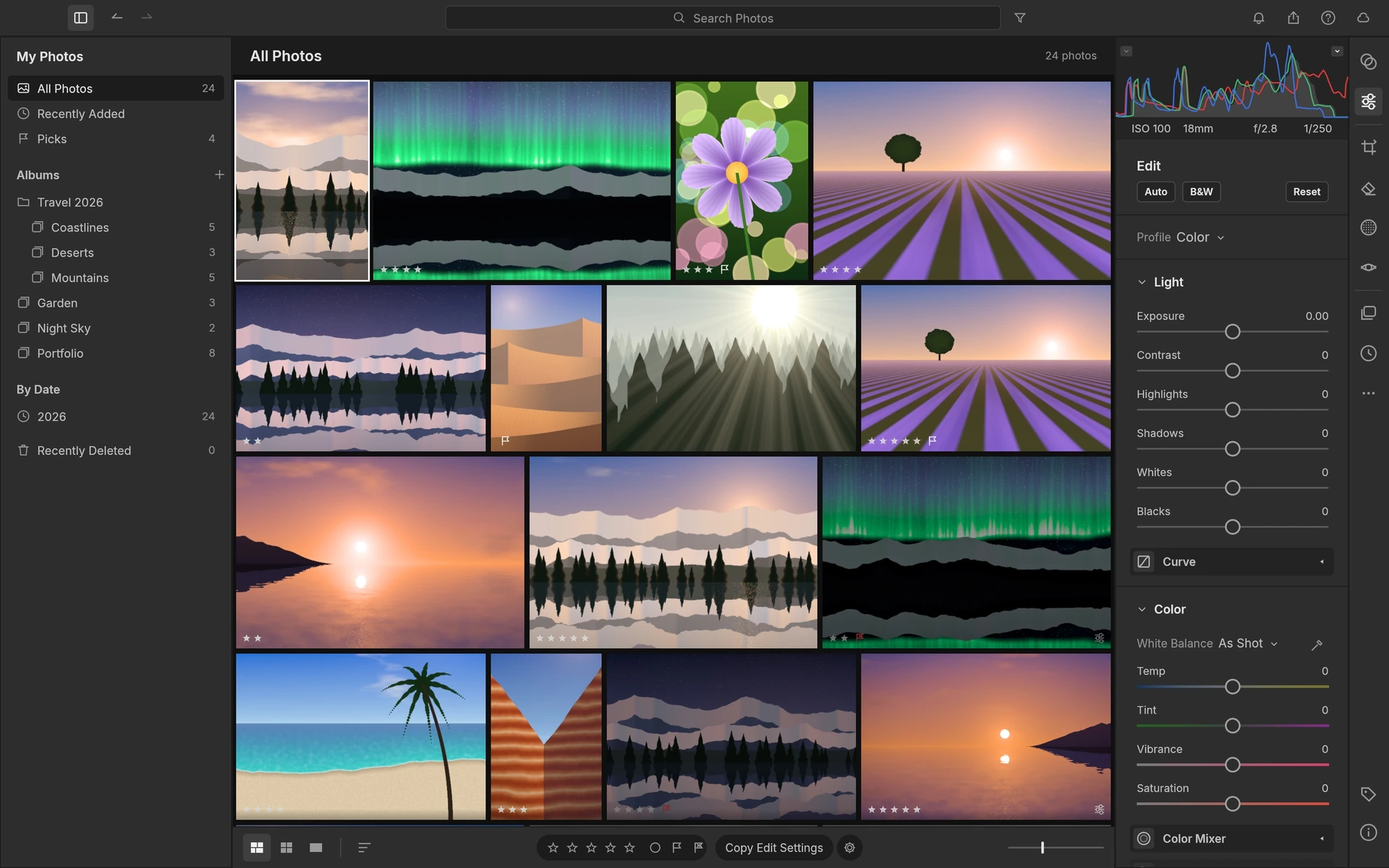
LightCraft Library view showing albums, rating tags, and grid controls in the official demonstration library. Screenshot credit: ArtCraft / LightCraft contributors.
Compare and Survey views help you select photos from a shoot before editing them. Users can evaluate similar exposures against one another, check focus, and lock in candidate selections before moving into active tonal adjustments. Metadata search options let you filter captures by capture date, lens specifications, exposure parameters, or applied rating tags.
In addition to interactive mouse and keyboard controls, LightCraft incorporates an external command-line interface, structured JSON messages, and Model Context Protocol automation hooks. These hooks allow external scripts to inspect library collections, query metadata, and trigger batch image operations without requiring manual interaction.
RAW Development and Everyday Color Adjustments
Switching from Library view to the Edit workspace brings the active photo onto the central canvas, with adjustment panels docked along the right side and the filmstrip below.
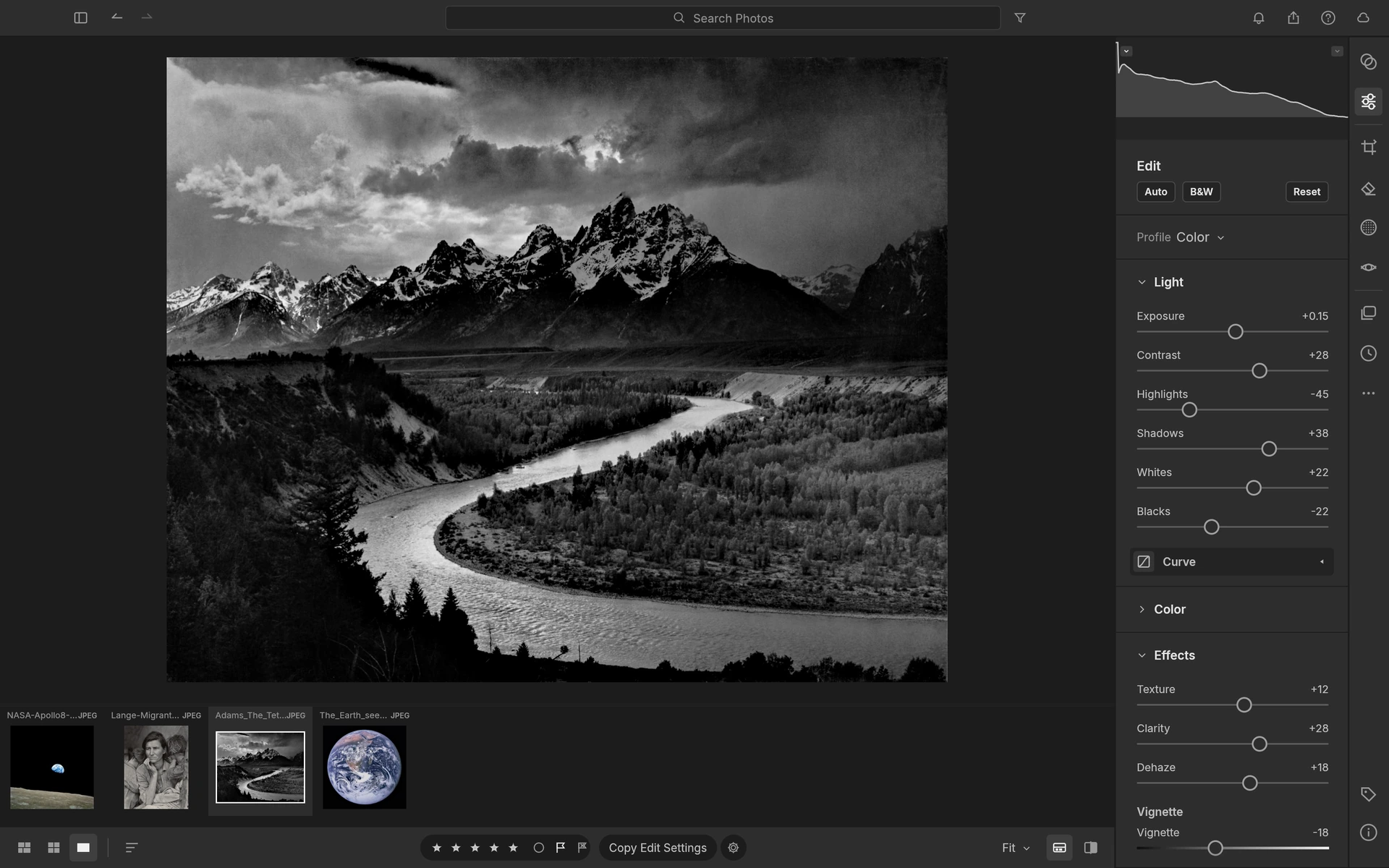
LightCraft Edit view showing non-destructive adjustment sliders and bottom filmstrip. Interface screenshot credit: ArtCraft / LightCraft contributors; photograph: Ansel Adams (1942), U.S. National Archives, public domain.
Non-Destructive Exposure and White Balance
Camera RAW files retain sensor data and generally offer more room for white balance and tonal adjustments than a processed JPEG. LightCraft's non-destructive editing keeps those adjustments separate from the original file, so you can revise a look later. Exposure and highlight controls work with the detail present in the capture; they cannot recover information that was never recorded.
The basic tonal panel includes familiar controls: Exposure, Contrast, Highlights, Shadows, Whites, and Blacks. Color temperature and tint adjustments calibrate white balance, letting you correct overcast daylight or cool indoor lighting casts before tackling deeper grading.
Tone Curves, Color Mixers, and Local Masks
Beyond these basic controls, LightCraft provides dedicated RGB Tone Curves for fine-grained contrast shaping across custom shadow and highlight intervals. An 8-band color mixer gives selective control over individual color hues, saturation, and luminance channels, making it straightforward to mute distracting foliage greens or deepen specific sky blues.
For balanced three-way color grading, color wheels adjust shadows, midtones, and highlights independently. When black-and-white conversion is enabled, users can adjust how different colors translate into shades of gray. For selective edits, LightCraft includes brush, linear gradient, radial gradient, luminance, and color masks. These basic masking tools operate locally, letting you dodge and burn specific subjects directly.
Presets, Synchronization, and Batch Export
Once a balanced look is established on a representative photo, users can save the custom adjustment stack as a reusable preset, copy selected settings, or synchronize adjustments across multiple highlighted frames along the filmstrip.
The export workflow provides options for batch rendering. Finished images can be exported as JPEG, PNG, TIFF, WebP, or AVIF. Original-file and DNG export options serve separate file-preservation and exchange needs. Photographers can configure custom resolution resizing constraints, sequential file naming templates, metadata inclusion rules, and overlay watermarks to prepare web assets or client proofs.
LightCraft, PhotoCraft, and Lightroom
LightCraft focuses squarely on non-destructive photographic asset management and digital negative conversion. PhotoCraft, by contrast, operates as a raster graphics editor designed for multi-layered bitmap painting, typography, and graphic compositing. For tasks requiring mixed graphic layouts or multi-layered artwork, LightCraft v0.7.1 includes an Edit In command that hands off a flat PSD document directly to PhotoCraft, providing a developed image as the starting point for a layered design. The handoff does not carry the original RAW adjustments as editable layers.
Compared to proprietary suites like Adobe Lightroom Classic, LightCraft shares familiar UI layouts, keyboard shortcuts, and non-destructive philosophies, but it remains an independent, clean-room implementation rather than a fork. Native desktop catalog import can read Lightroom Classic .lrcat files into a LightCraft library. It references the original photos in place and imports ratings, flags, color labels, keywords, collections, virtual copies, and supported editing settings. This is a one-way import that leaves the source catalog unchanged. Smart collections become fixed albums, and Lightroom cloud libraries are not supported.
However, several clear boundaries apply when importing or comparing tools:
- Independent Processing Engine: Matching numerical slider values does not guarantee identical pixel rendering, because underlying math, process versions, and tone algorithms are built independently.
- RAW Sensor Decoding: RAW support is camera and compression specific. While DNG, CR2, ARW, NEF, RAF, RW2, PEF, and ORF families are accessible, specific formats—such as compressed Olympus ORF files, select Canon CR3 variants, or Nikon high-efficiency NEF compressions—are not fully supported and may fall back to reading embedded preview JPEGs.
- Color Calibration Profiles: Camera-color calibration is handled separately from base sensor decoding, meaning LightCraft does not promise to mimic proprietary Lightroom camera profiles or in-camera camera-manufacturer JPEG color science.
- AI Masks and Plugins: Proprietary Adobe
.lrpluginadd-ons cannot run in LightCraft. While classical brush and gradient masks run locally, advanced AI selection weights and specialized denoise models are not bundled in the core repository; they require separate downloads and configurations by the user under independent terms.
Creative Assets Beyond Your Photos
When assembling a comprehensive photo showcase, editorial spread, or portfolio presentation, photographers often need companion visual elements alongside their photos. A gallery set may benefit from an abstract thematic backdrop, a minimalist cover illustration, or a stylized conceptual texture behind photographic prints.
To create supplementary visual artwork without leaving your browser, the FastMoroAI text-to-image studio generates raster graphics from descriptive textual prompts. A photographer presenting an outdoor gallery might use a prompt like:
abstract minimalist topographic landscape, muted earthy tones, textured background, soft daylight, no text
Generated images can be downloaded as standard image files and paired with your developed LightCraft photos in PhotoCraft for title styling, promotional banners, or portfolio title slides. The generated artwork serves the presentation, while LightCraft remains the place to organize and develop the photographs themselves.
Downloads, Language, and Practical Fit
LightCraft is available through the official ArtCraft download page, as well as direct source and binary assets hosted on the official v0.7.1 release page. Users can install the software via the unified ArtCraft Launcher or retrieve standalone packages for macOS, Windows, and Linux. A self-hosted WebAssembly zip archive is also provided for individuals wishing to run the editor within a browser environment.
Release v0.7.1 includes updates that complete the Simplified Chinese translation catalog. Users can switch their preferred language by navigating to Edit > Language or selecting Settings > General > Language. While top-level interface menus and tools display translated strings, select low-level technical messages and system errors can still appear in English.
Today, LightCraft is well suited for:
- Open-source enthusiasts and developers who prefer working on Linux, Windows, or macOS without cloud subscriptions or account restrictions.
- Independent photographers and hobbyists looking for an uncluttered desktop application to organize personal image folders, cull shooting sessions, and balance RAW tones locally.
- Technical users interested in automated catalog pipelines using headless CLI commands or MCP automation hooks.
For a workflow that depends on precise Lightroom rendering, unsupported camera files, or automatic cloud syncing between devices, those differences remain important when choosing an editor.
Testing LightCraft is best done on a modest local folder containing a few dozen representative RAW files. Import the batch, verify how your specific camera model renders on the canvas, practice applying local tone adjustments, and export test JPEGs to inspect how the non-destructive pipeline fits your routine.
Conclusion
Selecting, organizing, and developing an authentic series of photographs requires patience and dedicated tools. Having a native desktop environment that respects original files on disk, avoids subscription barriers, and gives creators direct control over tonal adjustments makes building an intentional photo library much more straightforward.
As LightCraft continues to mature its open-source RAW development engine, it offers photographers an appealing option for local image management. Testing the workflow with a small set of personal photos will quickly show whether its desktop cataloging and non-destructive development tools suit your creative process.