





The Babydoll dance trend started with Jamie Miller's own videos. The Welsh singer-songwriter released his single "Babydoll" on Republic Records, then posted videos of himself singing and dancing to the track, and those clips sparked the viral dance trend. On 18 September 2026, he followed up with a new version featuring actor and singer Antonio Cipriano.
Plenty of people want their own version, but not everyone has the time, the space or the confidence to rehearse the routine on camera. This tutorial shows how to make a Babydoll dance clip from a single still photo instead: where the effect lives, which photos work, how the three background modes differ, and what to look at once the video is ready.
Where to Find the Effect
The tool for this is the Babydoll Dance AI Video Generator on FastMoro AI. It is one of the ready-made templates in the FastMoro AI effects catalog.
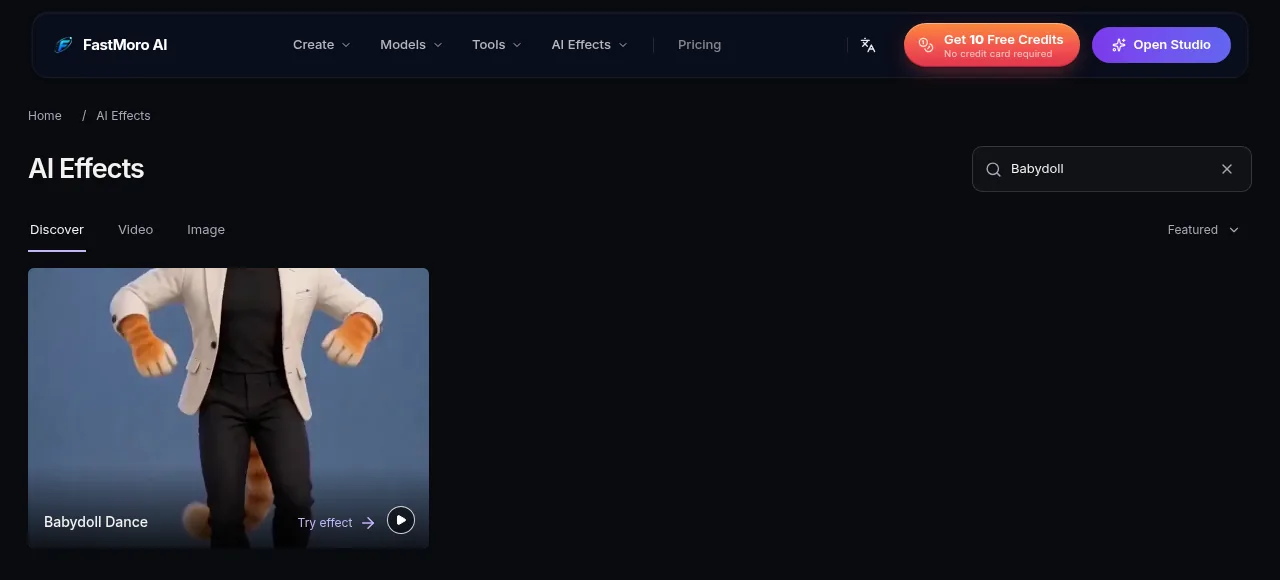
Search the AI Effects catalog for "Babydoll" to find the effect card.
You upload one photo; no prompt is needed. The dance movement and soundtrack are built in, so there is nothing to describe and no choreography to explain. Your job comes down to two choices: which photo to use and how the background should look.
It is worth saying up front that this is a fan-made effect. FastMoro AI isn't affiliated with or endorsed by Jamie Miller or Republic Records.
Choosing the Right Source Photo
Of those two choices, the photo matters most. The photo guides the character's appearance and outfit, while the built-in reference guides the dance. If the effect cannot see your whole body, it has to guess at the parts that are missing.
The upload rules are short:
- Accepted file types are JPG, PNG, WebP or HEIC.
- The file can be up to 4 MB.
Pick a photo with one person, full body in frame including face, hands and feet. The person should face the camera or stand at a gentle angle, with some space around the body rather than limbs cut off at the edges.
Two kinds of photos tend to cause trouble. A close-up selfie leaves out the body pose, so there is no torso, arms or legs to work from. A group shot has the opposite problem: overlapping people make the lead unclear. If your favourite picture falls into either group, it is usually worth taking a new full-length photo against a plain wall before you spend credits.
Step-by-Step Generation Guide
With a full-body photo ready, the rest takes only a few steps.
-
Open the Babydoll Dance AI Video Generator.
-
Upload your photo (JPG, PNG, WebP or HEIC, up to 4 MB).
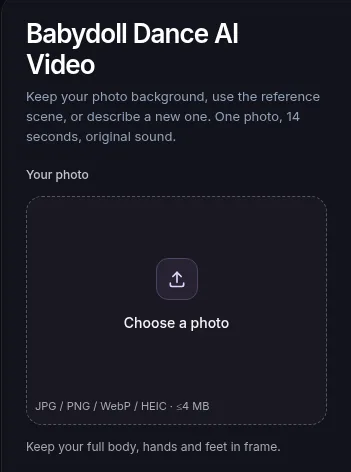
The upload box lists the accepted formats and the 4 MB limit.
-
Choose one of the three background modes:
- Keep photo background is the default. It uses the setting in your photo, so you dance where the picture was taken.
- Use video background puts your character in the built-in reference video's outdoor scene.
- Custom background lets you describe a new scene in 1 to 200 characters, for example "a neon-lit city street at night".
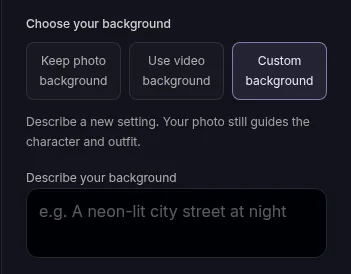
Choosing Custom background opens a field for describing the new scene.
-
Check the cost. A generation costs 100 credits, shown beside the Generate button before you start. Credit packages and plans are listed on the pricing page.
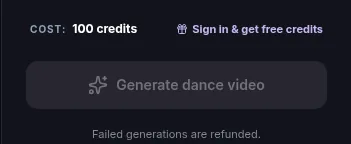
The 100-credit cost is shown with the Generate button before you start (screenshot taken while signed out).
-
Click Generate. Generation time depends on the current queue.
You don't have to keep the tab open while you wait. If you leave the page, sign in and open My creations to find the task and result.
A quick note on the background choice: whichever mode you pick, your photo still decides how the character looks and what they wear. The mode only changes the place around them. Keeping the photo background is the simplest option, the video background gives you the outdoor setting from the reference clip, and a custom description is the way to go when you have a specific scene in mind.
How to Review Your Finished Video
When the task finishes, you get a 14-second vertical 9:16 video at 768P. It carries the original 14-second soundtrack from the dance reference at original speed.
Downloading the finished video needs a paid credit pack or a subscription; without one, you can't download it. The options are on the pricing page linked above.
Exact movement and identity are not guaranteed, so watch the whole clip rather than judging it from the first frame. Go through it in this order:
- the face, from start to finish, to make sure it still looks like the person in your photo;
- the hands and fingers during the bigger arm movements;
- the feet, especially where they meet the floor;
- the turn and the final pose, where the body moves the most.
If something looks off, the photo is the first thing to change. A sharper full-body shot with clear space between the arms and the body gives the effect more to work with on the next run.
It also helps to know how refunds work. If the server confirms a charged generation failed, the credits are restored. A task still waiting, or a finished video with imperfect movement, is not a confirmed failure, so check the photo carefully before you generate.
Frequently Asked Questions
Do I need to write a prompt for the dance?
No. The dance movement and soundtrack are built in. You only provide the photo and pick a background mode. The custom background mode is the one place you type anything, and that is a short scene description of up to 200 characters.
Can I make a horizontal 16:9 version?
No. The effect produces a 14-second vertical 9:16 video at 768P, made for vertical feeds.
Can I put two people in one Babydoll video?
The effect is built around one person. Overlapping people make the lead unclear, so use a photo with a single person in full view.
What if my video is taking a long time?
Generation time depends on the current queue. You can close the page; when you come back, sign in and open My creations to find the task and result.
Is this connected to Jamie Miller?
No. It is a fan-made effect. FastMoro AI isn't affiliated with or endorsed by Jamie Miller or Republic Records.
If you would rather put a portrait into a desk-side band clip, see how to make a Tiny Desk AI video.