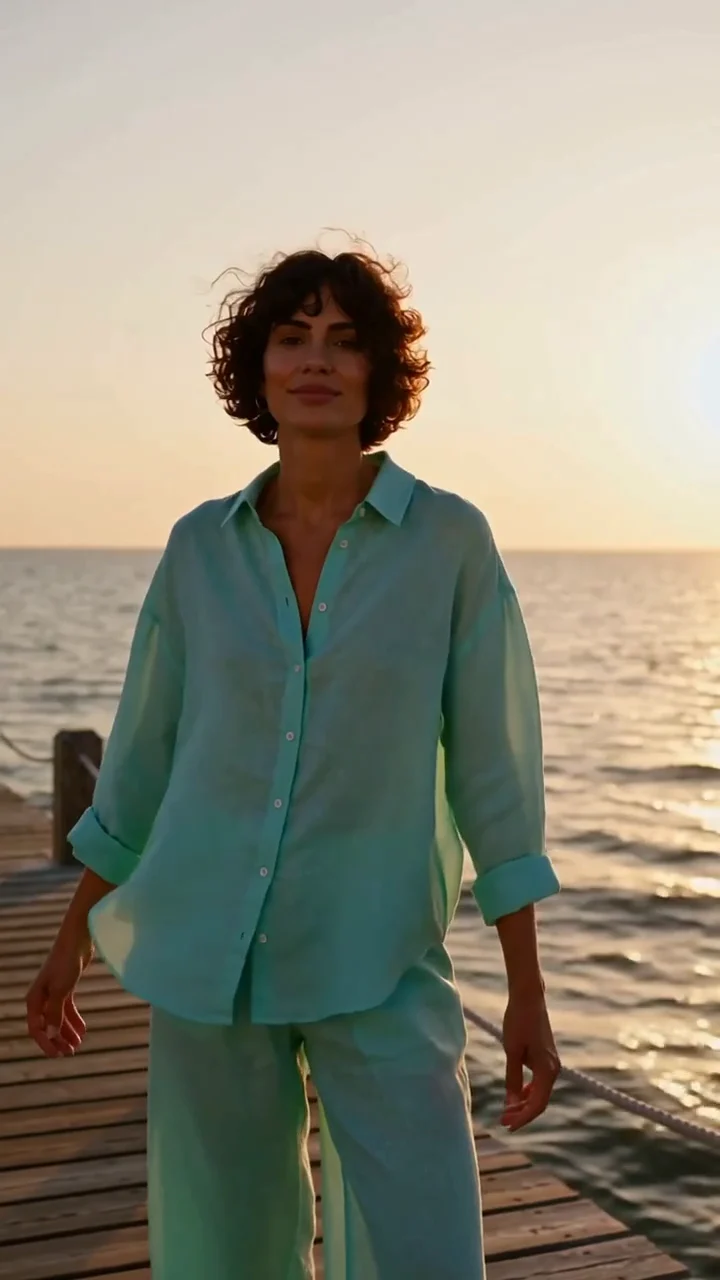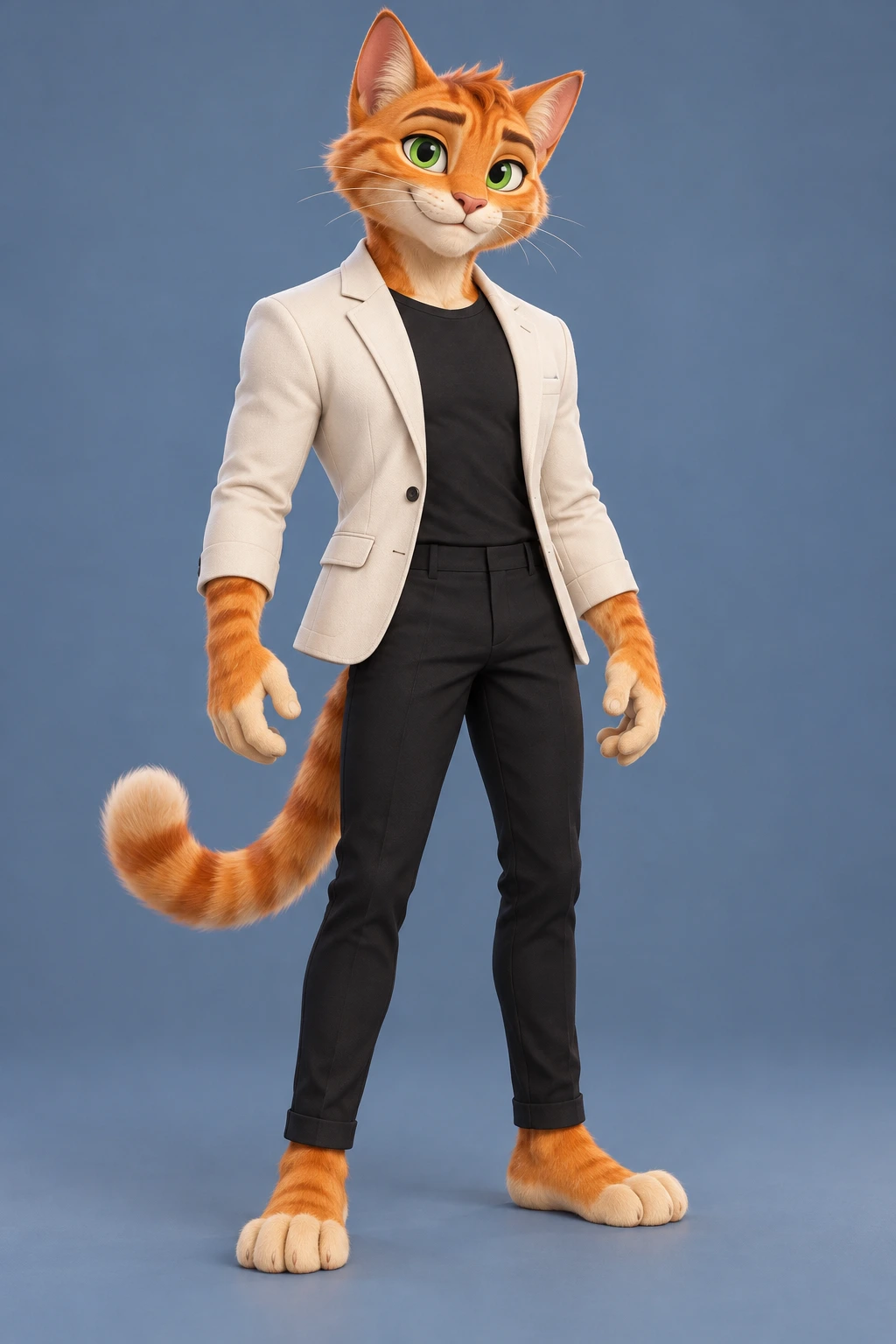


Photo-to-video examples
Navy jacket · 10s
10 seconds · Original soundtrack. A portrait-guided lead in the Burning Bridges party performance.
Example preview

Create a Burning Bridges AI video from one photo. Step into the party performance with a new lead and the included soundtrack. No prompt needed.
Credits return if generation fails.
01 / Character replacement
Compare each input portrait with the finished performance. The navy-jacket example shows the 10-second party scene; the turquoise-outfit example is a shorter performance with a different soundtrack. The animated cat adds an 8-second character version. Use the pairs to judge appearance and movement before making your own take.
Input portrait
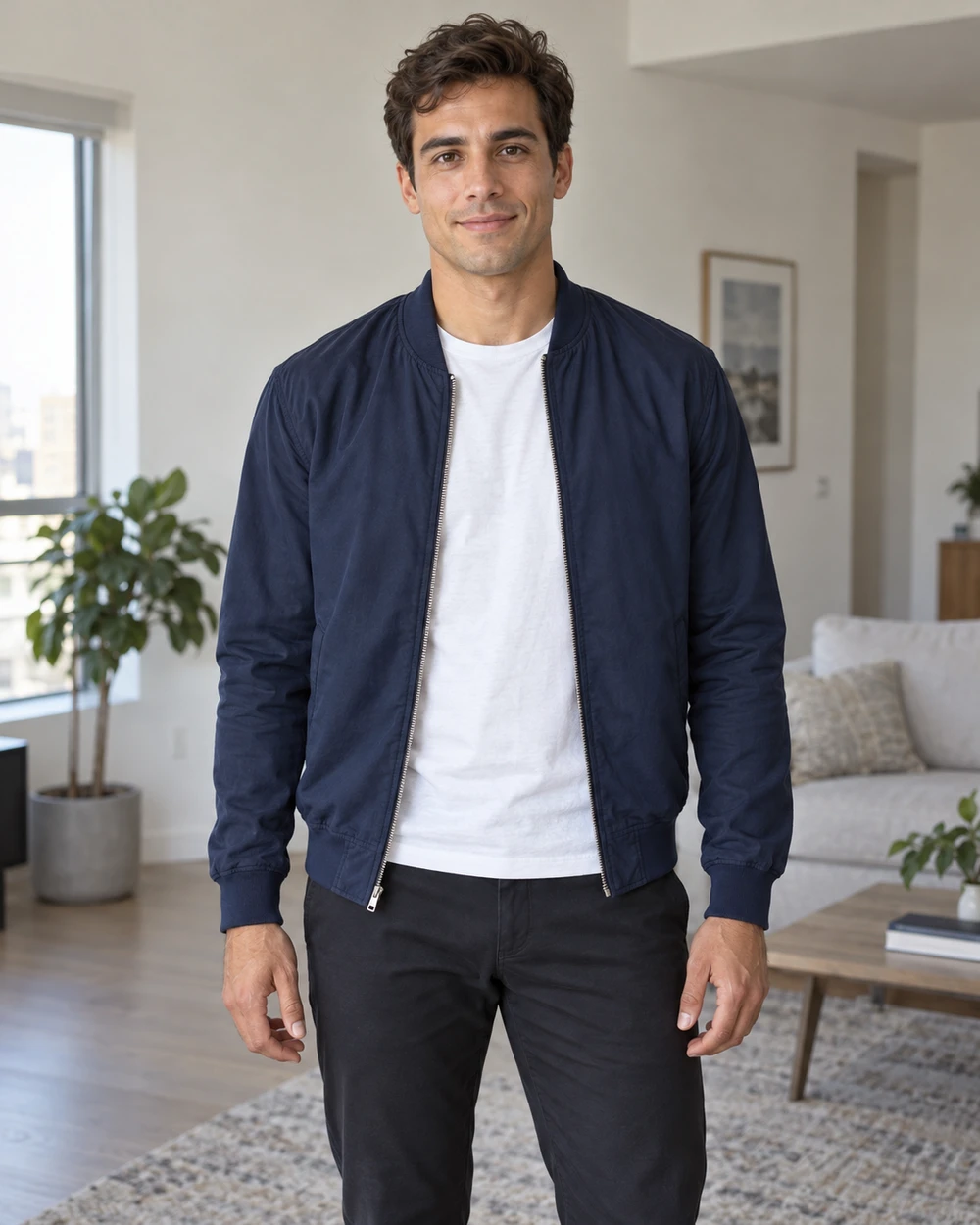
Video result
02 / The performance
A Burning Bridges AI video turns a still portrait into a character-led party performance. The chandelier-lit room, metal cup, close camera and expressive hand gestures give the effect its recognizable look, while your photo supplies a new person to follow.
Your photo defines the visual starting point. The face, hairstyle and visible outfit guide the new lead, which is why the navy jacket and turquoise outfit in the examples create such different impressions. A strong result should still feel connected to the portrait rather than look like an unrelated performer. Keeping that connection is useful whether you want a playful self-portrait or a character-led edit.
The built-in video supplies a performance reference for your Burning Bridges AI video. Instead of filming a routine or writing a detailed sequence of movements, you start with an existing scene that provides gestures, framing and a sense of timing. AI interprets that reference: hands, facial details, background activity and exact poses can change between takes. Treat the examples as a way to understand the effect, then review your own full result.
The original soundtrack is included in the finished download, so the picture and music can be reviewed together. Listen through the complete clip rather than judging it from a silent poster frame. The delivery is more than a portrait with a moving background: the character’s gestures, the camera distance and the music all contribute to how the short performance feels.
You can use the result as a trend response, a humorous reaction or a new visual take on a familiar portrait. The generator handles the photo-to-video step; choosing a convincing take is still a creative decision. Check that the expression suits your idea and that the movement reads clearly at the size where you plan to share it.
03 / How it works
The Burning Bridges AI video generator includes the reference clip and soundtrack. Your job is to choose the lead photo, review the settings and cost, and decide which finished take to keep.
Choose one portrait with the face, hairstyle and outfit visible. The photo supplies the character’s appearance; it does not need to show a dance pose or the party location. Use the upload panel to check that the intended person is clear before starting.
Sign in and check the displayed credit cost before generating. Review the duration, resolution and aspect ratio in the settings summary, then submit once the portrait and quote look right.
Preview your Burning Bridges AI video with sound. Check the face, clothing, hands and ending before downloading the take you prefer. The task is also available in My creations, so you can return to the existing result instead of starting a second generation just to find it.
04 / A stronger starting photo
A clear starting photo makes it easier to judge whether your Burning Bridges AI video has kept the look you wanted. Focus on recognizable features and usable clothing detail rather than trying to imitate the reference pose.
Use one main subject, facing the camera or at a gentle three-quarter angle. Leave the eyes and outline of the face visible. Hair, a phone or dark sunglasses covering key features can make the intended identity harder to interpret. The current effect form takes one lead photo, rather than a separate cast of background people.
A waist-up or three-quarter portrait gives more information than a tightly cropped headshot. Include the jacket, shirt or color you want represented, with some room around the shoulders. If you are comparing two looks, keep the pose and lighting similar so the clothing is the main difference between the inputs.
Start from a sharp image with soft, even light across the face. Avoid motion blur, very deep shadows or a heavy beauty filter that removes important features. The upload panel accepts JPG, PNG, WebP and HEIC files up to 4 MB; use the clearest version that fits the limit.
05 / Choose your take
A useful first Burning Bridges AI video gives you something specific to evaluate. Check the settings and credits, then compare the finished result with your portrait and the examples before deciding whether another version would help.
Review the output duration, resolution and aspect ratio in the settings summary. The displayed quote is the cost of a new generation. Start with a budget for a first take, then decide whether another version would answer a specific question about appearance or movement.
If the face or outfit is unclear, try a cleaner portrait with a clear view of the character and clothing. Keep the other inputs consistent so you can judge whether that photo improved the Burning Bridges AI video. Review the existing result first, and only start another generation when you have a specific change to test.
A strong opening frame does not tell you how the rest of a clip behaves. Watch through the gestures, close-up and ending with sound, then compare the face, hands and clothing with your starting image. Keep the take that communicates your idea clearly, even if another version has a more dramatic first frame.
06 / Put it to use
Give the clip a clear purpose before you generate. These ideas use the existing one-photo performance; they do not require extra filming or a separate background upload.
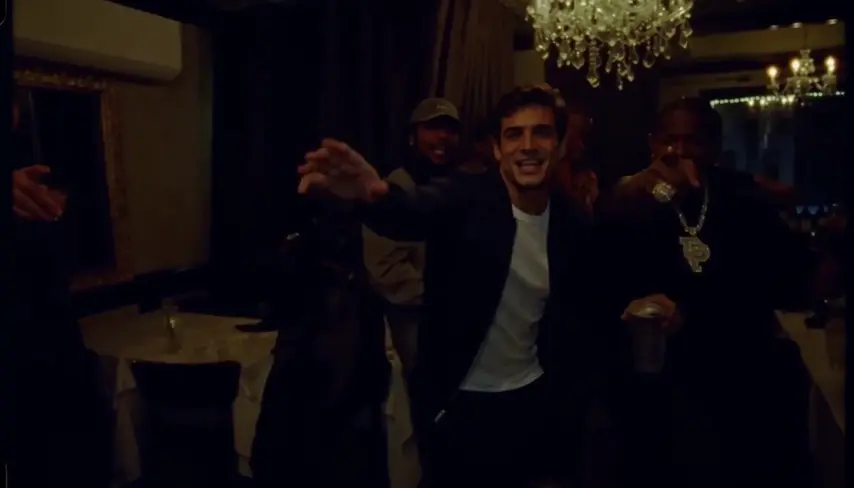
Put a familiar portrait into the party performance and let the outfit set the mood. A formal jacket creates a different impression from a bright casual look. For a Burning Bridges AI video intended as a trend response, prioritize a recognizable lead and a clear opening gesture rather than changing several visual details at once.
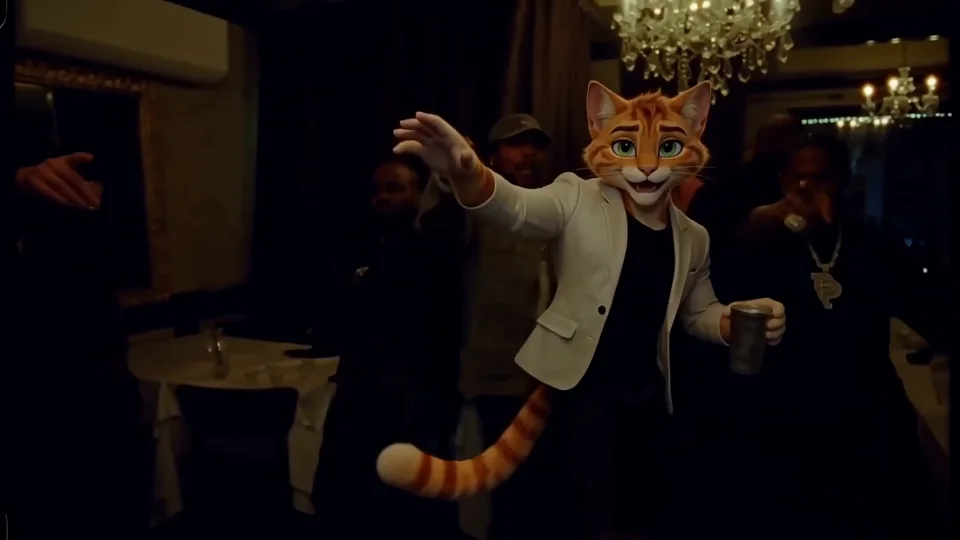
Use the confident expression, raised cup or direct-to-camera gesture as the basis for a playful reaction clip. Preview the full result, then choose the moment that fits your message. You can add your own caption in the app where you post; the generator’s job here is to create the character-led performance.
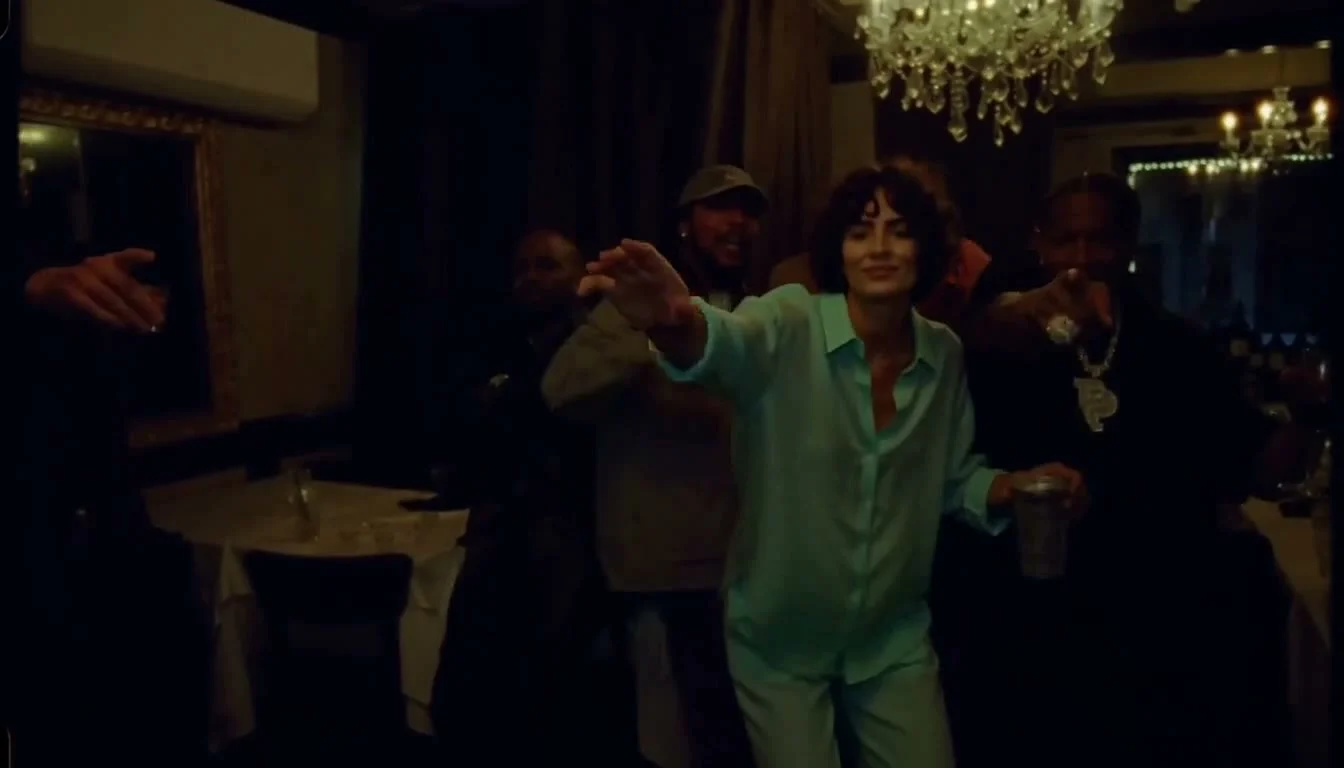
Use a distinctive portrait to explore how a particular hairstyle, jacket or color reads in motion. Compare the source photo with the finished clip to decide whether the look still feels like the intended character. This gives you a short visual reference to discuss or share before choosing the look you prefer.
Good to know
Make a Burning Bridges AI video with your portrait, the included performance reference and original soundtrack. Check the quote and create a take to review.