

Three background choices
Keep photo background · Default
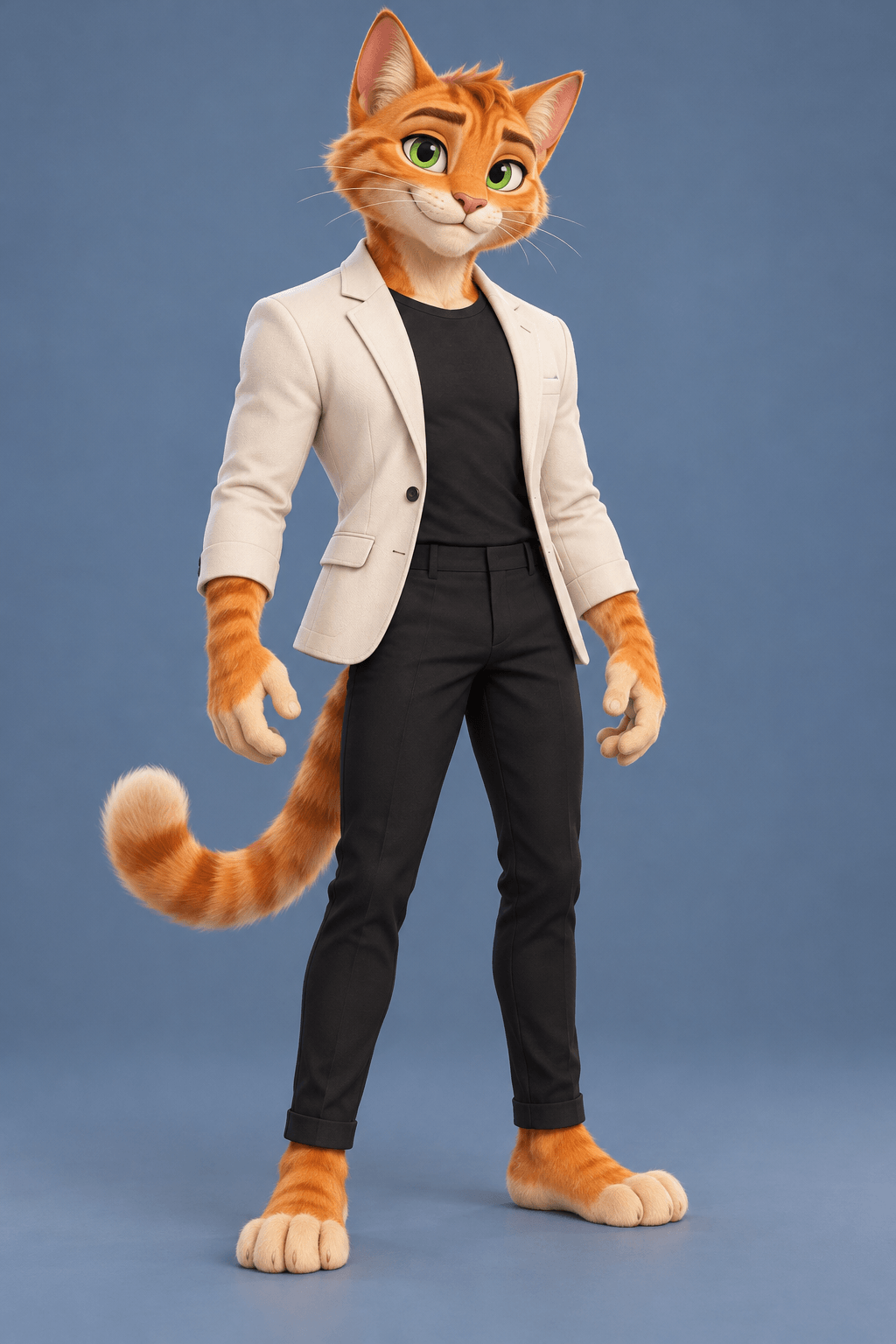
The cat’s blue photo backdrop becomes the dance setting. Use Keep photo background to animate a character in the visual world of the uploaded image. This is the default choice.
Example preview

Keep your photo background, use the reference scene, or describe a new one. One photo, 14 seconds, original sound.
Failed generations are refunded.
01 / Three ways to set the scene
These three examples show what each background choice does: keep the photo’s scene, follow the reference video, or describe a new setting. Compare each input with its finished dance video.
Input image
Video result
The cat’s blue photo backdrop becomes the dance setting. Use Keep photo background to animate a character in the visual world of the uploaded image. This is the default choice.
02 / Choose your background
Your photo guides the character’s appearance and clothing in every mode. You choose where the performance happens. All three share the same 14-second dance, original speed and original soundtrack.
The photo supplies both the character and the setting. Choose it when a simple studio backdrop, your room or a character’s illustrated world is part of the look. The blue-background cat is the example.
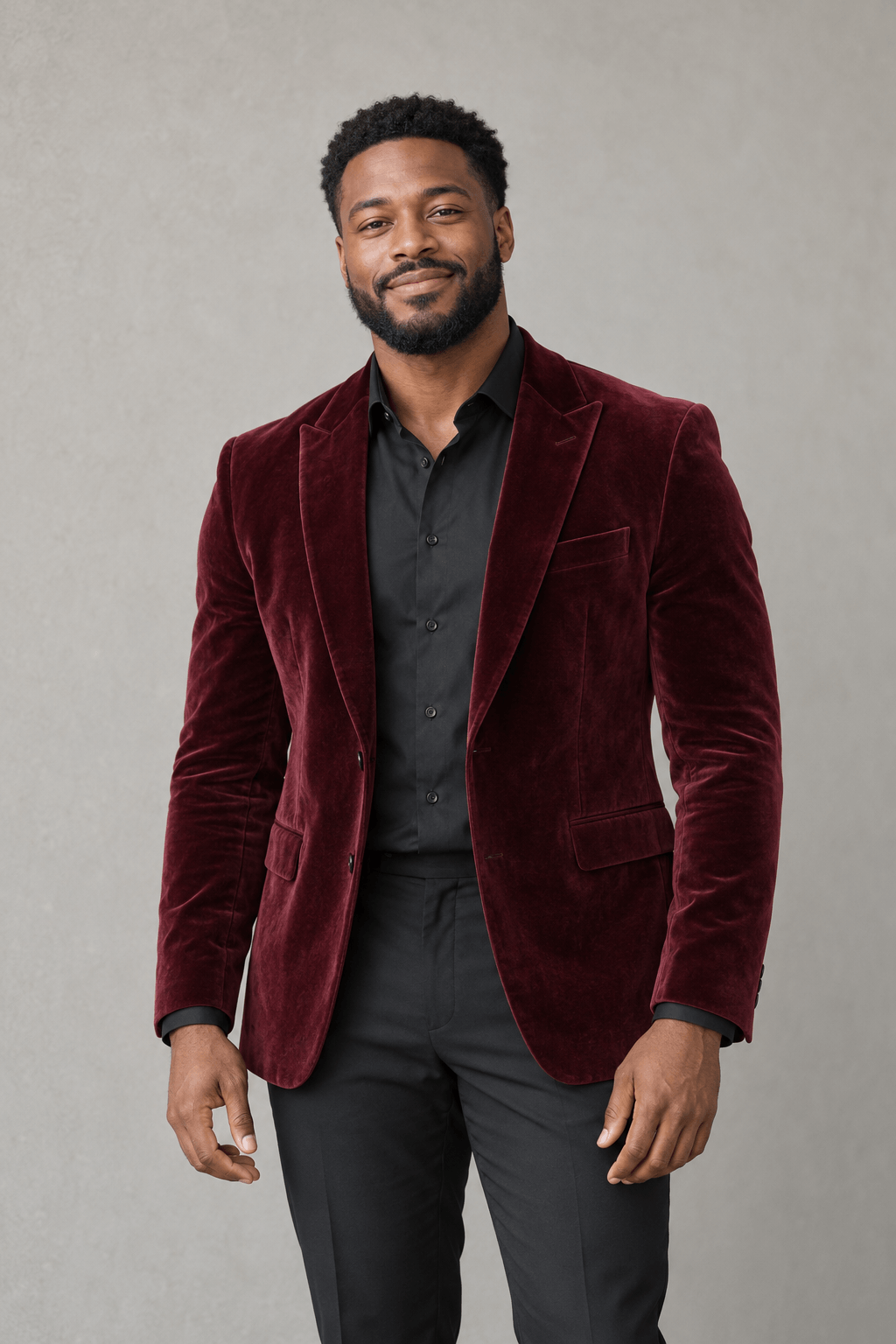
The photo supplies the character; the built-in video supplies the setting. Choose it to put your lead in the original outdoor dance scene without writing a background description. The burgundy-jacket example shows the change.
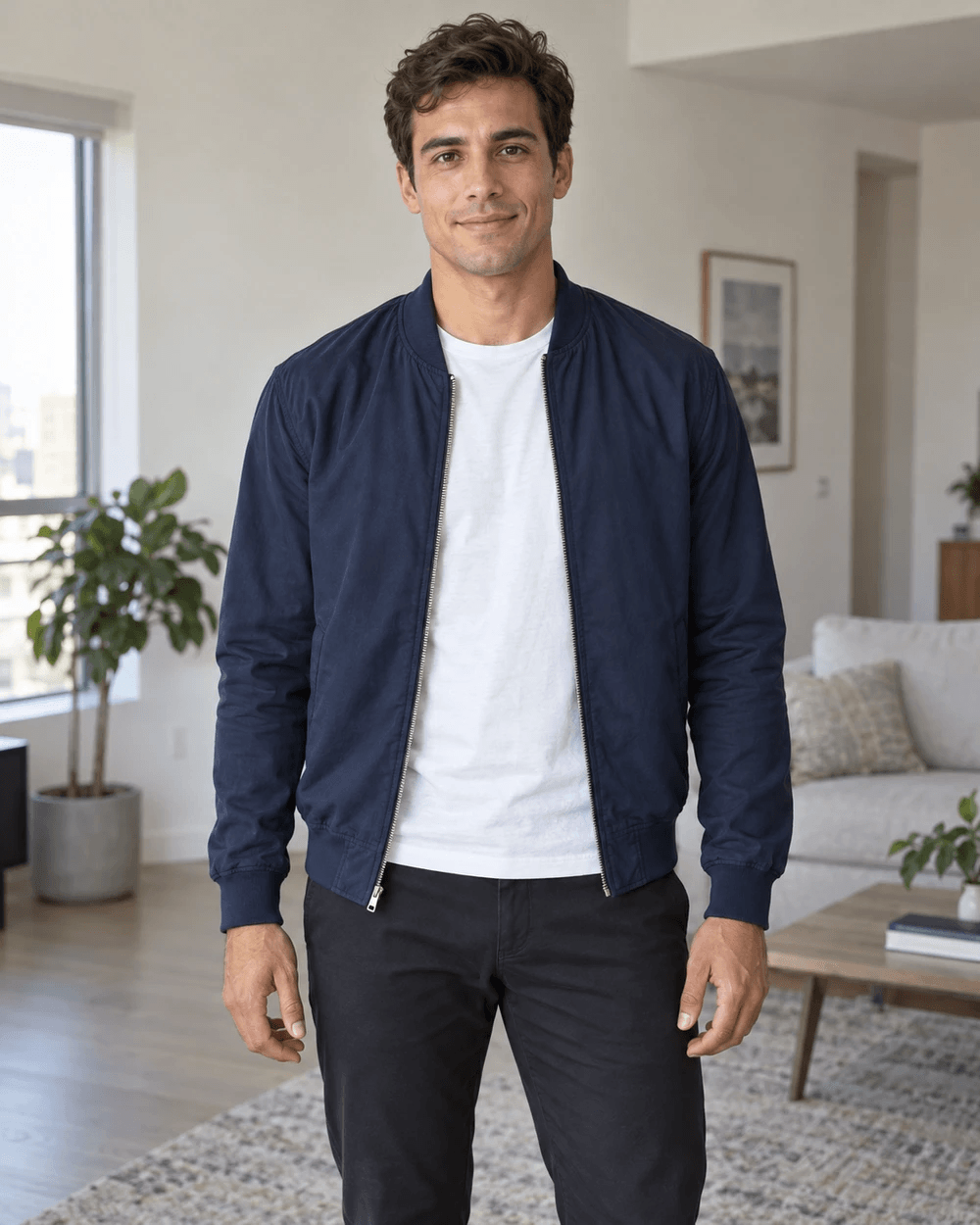
The photo supplies the character; your text supplies a new setting. Choose it for a scene that appears in neither the photo nor the reference, such as the navy-jacket example’s neon street. A short scene description is required.
03 / Make your version
Upload a photo, decide which scene to use, then generate. The movement and soundtrack are already included.
Choose a front-facing photo of the person you want to animate. Keep the face, hands and feet visible, with room around the body. Use the upload preview to check that the intended person and outfit are easy to see. JPG, PNG, WebP and HEIC files are supported up to 4 MB.
Keep photo background is selected by default. Choose Use video background for the reference setting, or Custom background and describe a new scene in 1–200 characters. Check the displayed 100-credit cost before generating; every mode uses the same 14s, 9:16, 768P setup.
Play the complete Babydoll dance AI video rather than judging its first frame. Check the face, feet, turn and ending, and listen to the soundtrack. Download the take you want to keep. If you leave the page while it is processing, return to My creations to find the existing task.
04 / A stronger starting photo
A sharp full-body photo gives the dance a clear starting pose. The burgundy-jacket example below starts from a three-quarter portrait; the unseen lower body must be inferred. For a more controlled starting point, include the hands, feet and complete outfit.
Keep the entire person in frame, including the shoes and the ends of both arms. A little empty space beside the body gives the side steps and arm gestures room to read. Avoid starting from a photo that already cuts through the knees, wrists or top of the head.
Choose a single, clearly visible subject, facing the camera or at a gentle angle. Avoid overlapping people or an object covering the face. The effect is designed around one new lead, even though the movement reference includes background performers.
A clear face and outfit help in all three modes. When keeping the photo background, also check that the surroundings suit your idea. If you want a different location, use video or custom background instead of expecting a cropped portrait to define a new scene.
05 / Choose your take
A useful first take gives you specific things to evaluate. Compare it with both the photo and the movement reference before deciding whether another generation would help.
Compare the face and outfit with the input photo, then check the scene against your choice: the photo setting, the reference-video setting, or your custom description. AI interprets the inputs; it does not guarantee a pixel-perfect background or face replacement.
Pay attention to the crossing steps, low shuffle, planted stance and final arm movement. Check for extra limbs, sliding feet or an abrupt ending. The requested duration matches the reference, but exact choreography and beat matching still depend on the generated result.
The current 14-second template costs 100 credits per generation. If you want another take, change one useful thing, such as a clearer full-body photo, so the comparison tells you something. A completed video with imperfect movement is different from a confirmed failed task; only the latter triggers the failure refund.
06 / Put it to use
Use the same Babydoll routine for a character animation, a take on the original dance, or a new scene of your own. These images are frames from the three actual examples above.
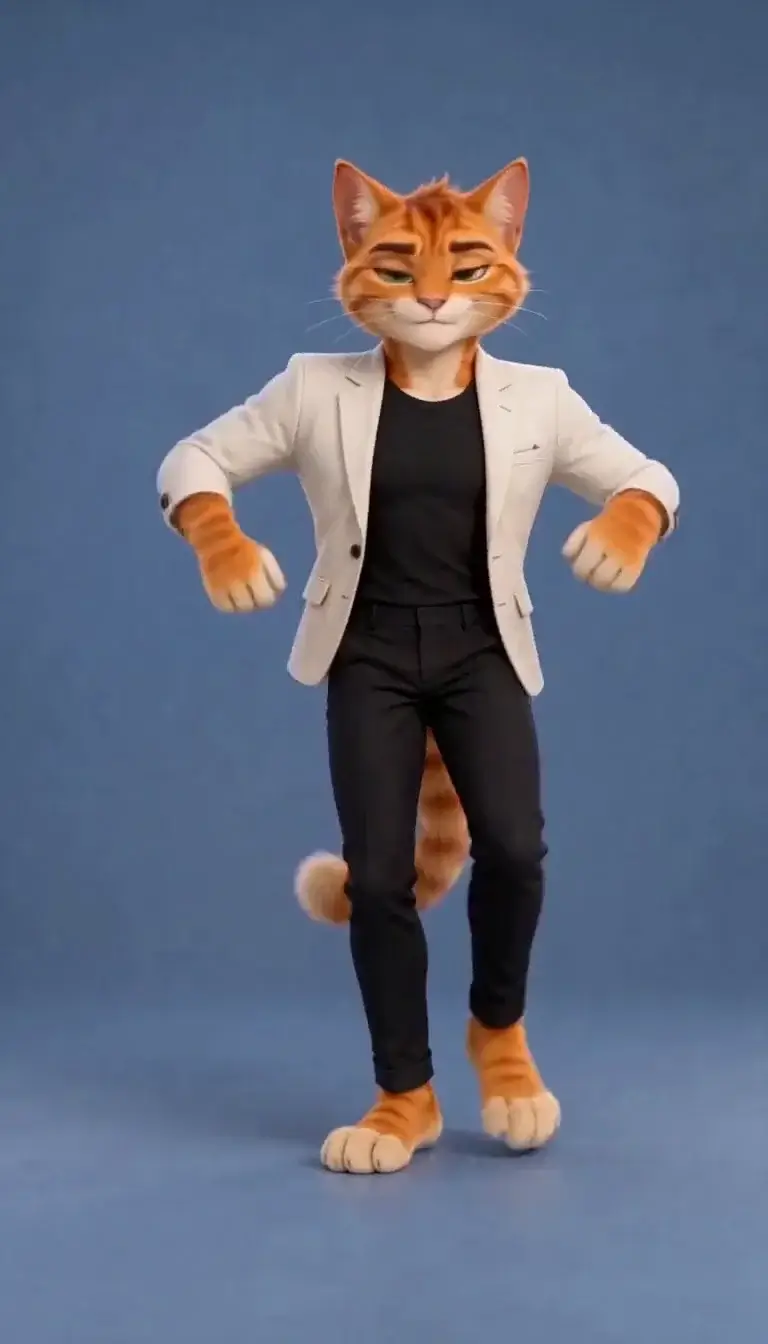
Choose Keep photo background when the backdrop belongs to the character’s look. The animated cat keeps its blue setting while performing the routine. A simple background can also make the outfit and movement easier to follow.
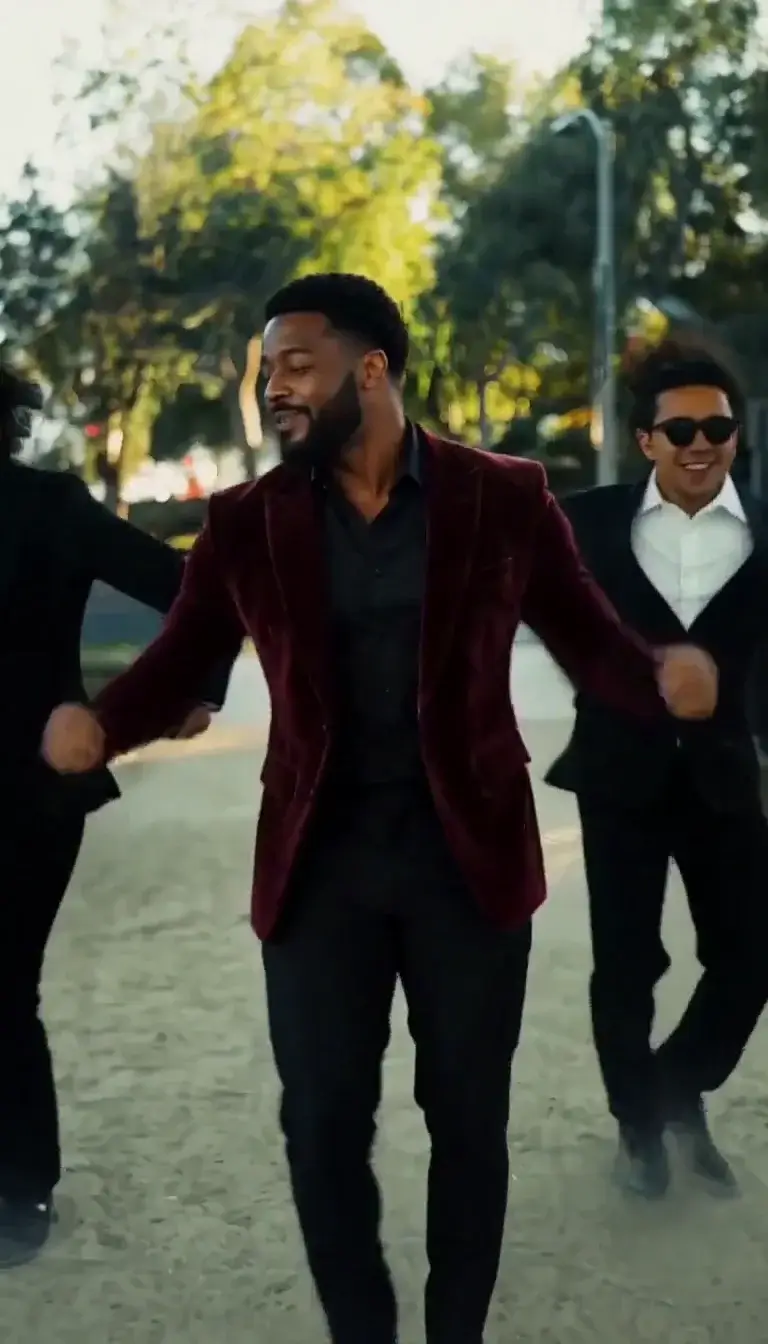
Choose Use video background when you want the reference performance’s setting around your own lead. The burgundy-jacket portrait shows how a different person and outfit can enter that outdoor scene.
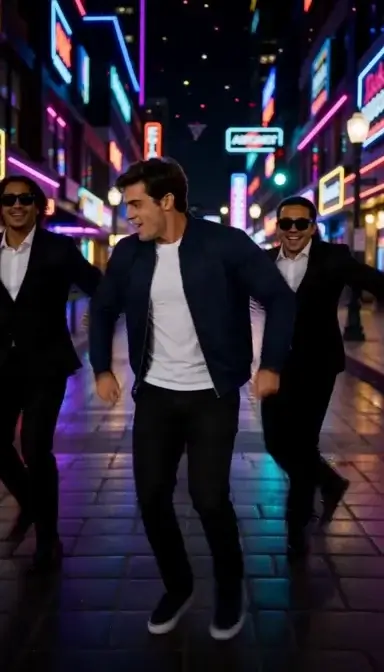
Choose Custom background to create a mood for a personal post, a celebration or a character idea. The navy-jacket example turns an ordinary living-room portrait into a neon-street dance. Describe the setting; the included routine supplies the movement.
Good to know
Keep your photo’s setting, step into the reference scene, or describe a new world. Upload a photo and make your 14-second Babydoll dance with the original soundtrack.